
Why there's a review workflow at all
A Qrtr Check tells you whether a document meets its requirements. It doesn't tell you whether the document is any good — whether the reasoning holds, whether the diagram is right, whether a colleague with twenty years in the discipline would put their name to it.
That's what the review workflow is for. It sits alongside the automated check as the human layer: a structured way to send a document to named colleagues, capture what they raise as trackable issues, work through the fixes, and get a recorded sign-off at the end.
This article introduces how it works end to end. Later articles cover each stage in depth.
The four statuses
Every document in the review workflow sits in one of four states, and understanding them makes the rest of the workflow obvious.
In Fix means the author is working on the document. In Review means it's with a reviewer, who is reading it and raising issues. Pending means it's been submitted for approval and is waiting on an approver. Approved means it's signed off and locked.
You'll see these as badges in the Reviews list, colour-coded so you can scan the list and see what's stuck where.
Before you start: who can review and who can approve
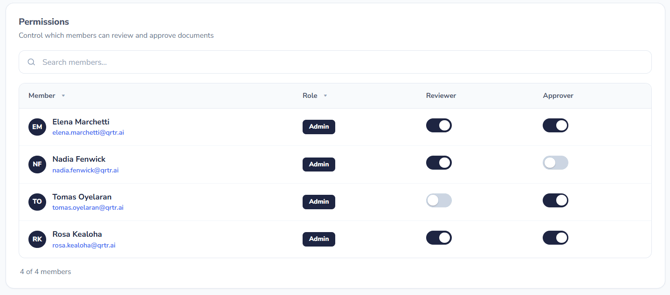
Reviewers and approvers aren't chosen freely from your whole user list. An organisation admin decides who is eligible, and authors then pick from that pool.
This is controlled under Admin → Permissions, described on screen as controlling which members can review and approve documents. Each member appears with their role and two independent toggles: Reviewer and Approver. A member can hold both, either, or neither. There's a search box for finding people in larger organisations.
If a colleague isn't appearing in the reviewer list when an author tries to send a document out, this is where to look first.
Two ways a review starts
From the Word add-in
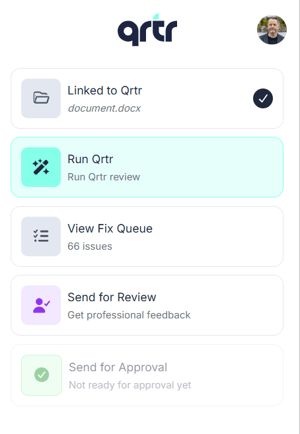
This is the normal route for an author. While working in the document, the author sends it for review — or straight for approval if no review stage is needed — and selects the reviewers or approvers they want from the list of people the org admin has enabled. Once sent, the document enters the review workflow and the chosen people are notified.
From the browser
You can also start a review directly in Qrtr, which is useful when the document didn't originate in the add-in or when you're setting up a review on someone else's behalf.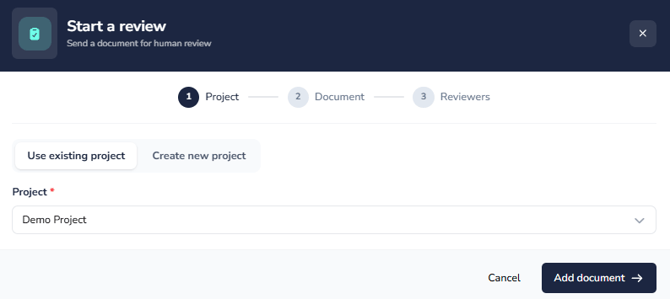
Click New Review in the left navigation, or Start on the Start a review card on the Home page. Choose the project the document belongs to — Use existing project if it's already set up, or Create new project to make one inline. Click Add document, upload the document, then continue to the reviewers step to assign who should look at it.
A document added this way goes straight into In Review status.
Moving a check report into review
A third route is taking an approved Qrtr Check report and moving it into the review workflow, where it would enter as In Review. This closes the loop between the automated check and the human review — the check finds what's missing, the review judges what's there.
How a reviewer finds out
A reviewer is told in two places at once.
They get an email notification telling them a document is waiting for them.
They also get an in-browser notification. The bell icon in the top right carries an unread count, and opening it shows entries like Review Requested or Approval Requested, each naming who asked, which document, and how long ago. Unread items carry a dot. The panel has Mark all as read and Clear all.
The same requests appear in What needs your attention on the Home page, each with a Start review button — usually the fastest way in.

Reviewing a document
Opening a review gives you two views, toggled at the top of the second left-hand panel.
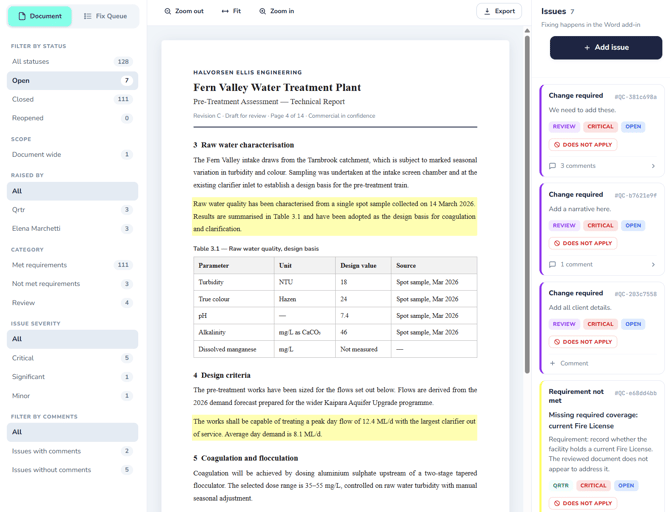
Document renders the document itself with issues anchored to the passages they relate to, alongside Zoom Out, Fit and Zoom In controls and an Export button. The right-hand panel lists the issues. This is the view you read in.
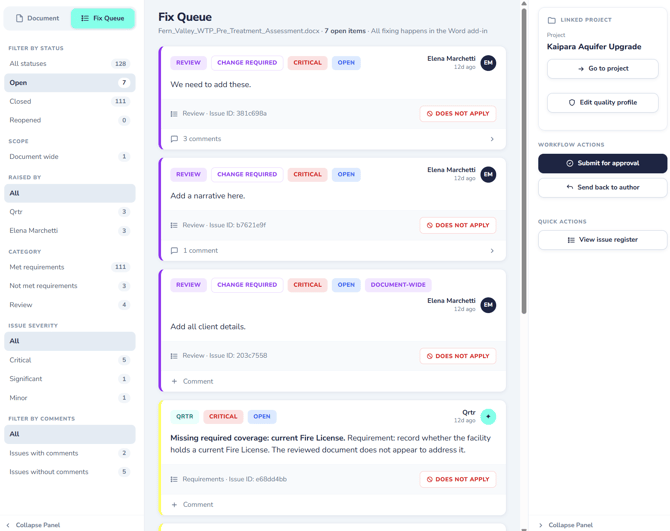
Fix Queue is the working list. It shows the document name, a count of open items, and a reminder that all fixing happens in the Word add-in. Each issue appears as a card tagged with its source (Qrtr for automated findings, Review for human ones), its type, its severity, its status, and — for human-raised issues — the avatar, name and date of whoever raised it. Document-wide issues carry an extra tag saying so.
The filter panel serves both views. Filter by status splits open from closed. Scope separates document-wide issues from anchored ones. Raised by filters to a particular person, which is how you review one colleague's comments at a time. Category separates Requirements issues, which come from the automated check, from Review issues raised by people. Every filter shows a live count.
Raising an issue as a reviewer
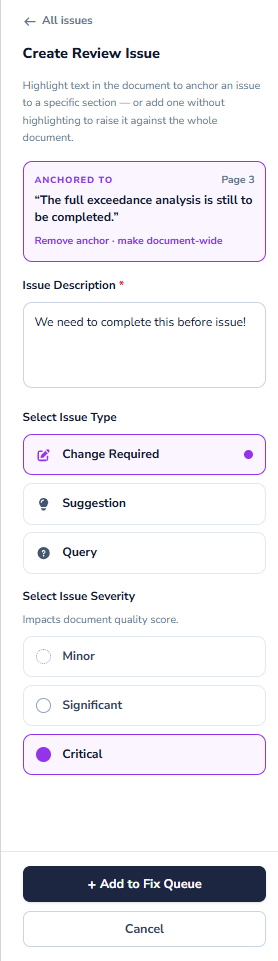
Click Add Issue in the right-hand panel to open the Create review issue form. The instruction at the top explains the choice you're making: highlight text in the document first to anchor the issue to a specific section, or add one without highlighting to raise it against the whole document. The Scope box confirms which you're doing.

Then complete three things. Issue description is required — this is your guidance to the author, so be specific about what needs to change rather than just noting that something is wrong.
Issue type sets the weight of what you're raising. Change required means the document must change. Suggestion is an improvement the author can weigh up. Query is a question rather than an instruction. Choosing honestly here matters, because it tells the author what they're obliged to act on.
Issue severity is Minor, Significant or Critical, and the form notes that this impacts the document quality score — so severity isn't cosmetic.
Click Add to Fix Queue to raise it, or Cancel to discard.
Working through the issues
Issues can be discussed and dismissed in the browser, but they can't be fixed there. Every view carries the same reminder: fixing happens in the Word add-in. The browser is the register and the conversation; the add-in is where the document changes.
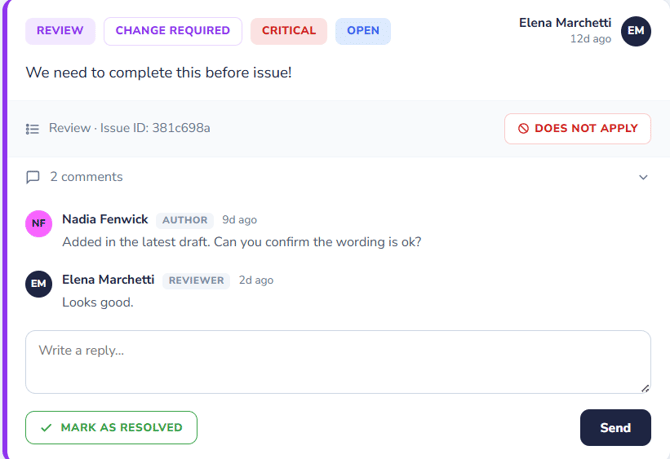
Does not apply dismisses an open issue as not relevant. Comment opens a thread on the issue, where the author, reviewer and approver can discuss it — cards show a comment count once a thread exists, so you can see at a glance which issues are contested. Use comments to record why something was dismissed; that reasoning is what makes the register defensible later.
Submitting, approving and sending back
The right-hand panel's Workflow actions section changes depending on where the document sits, which makes it a reliable indicator of status.
While the document is with the author or reviewer, the action is Submit for approval. This moves it to Pending and notifies the approver.
Once it's pending, an approver sees two actions. Approve document signs it off and moves it to Approved. Send back to review returns it for more work rather than approving it — the right choice when issues remain unresolved or the fixes don't go far enough.
Once approved, the action area shows Approved and is no longer actionable. The document is locked.
The panel also always shows the Linked project with a Go to project shortcut and an Edit quality profile link, since a review sometimes reveals that the project's rules need adjusting rather than the document.
Tracking reviews across the organisation
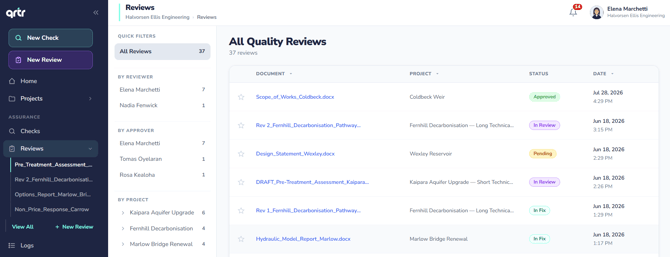
Reviews in the left navigation lists every review with its project, status and date. The filter panel groups them by reviewer, by approver and by project, each with counts — so you can answer "what's sitting with Priya?" or "what's waiting on me to approve?" in one click. Expanding Reviews in the navigation also gives you your most recent reviews plus View all and New review shortcuts.
Insights is the better tool for chasing. Its time saved and blockages report lists what's currently blocked, how long each item has been waiting, who it's waiting on, and flags long-stalled items. Each row offers Reassign and Send reminder, which is considerably more effective than remembering to chase manually.
Issue registers
The Issue register is the intended centrepiece of review tracking. Rather than an event log of things that have happened, a register is a live picture of where a document stands in the review process, using the same four statuses — In Fix, In Review, Pending and Approved.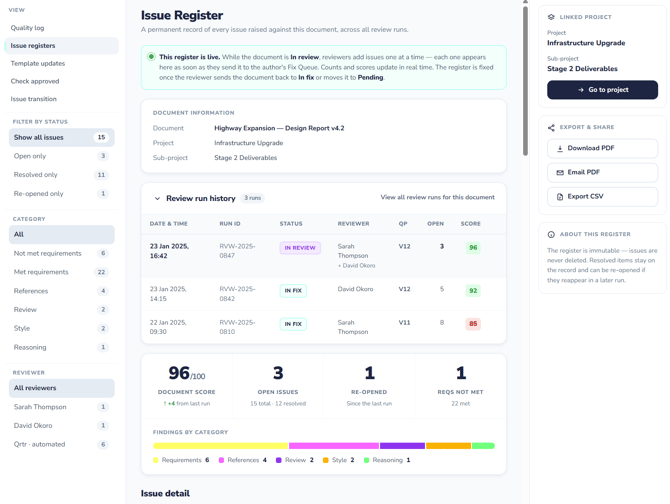
Registers live under Logs → Issue Registers, and a View issue register shortcut sits in the Quick actions section of every review's right-hand panel.
The workflow at a glance
An author sends a document from the add-in, or someone uploads it in the browser, and it becomes In Review. The reviewer is notified by email and in-browser, reads it, and raises issues typed as change required, suggestion or query, each with a severity. Issues go to the Fix Queue, and the author fixes them in the Word add-in while the document sits In Fix. When the work is done, someone submits it for approval and it goes Pending. An approver either approves it, making it Approved and locked, or sends it back to review. Throughout, the issue register shows where the document stands.