The Qrtr Word Add-in brings the automated quality check into the document you are already writing. The Add-in is a pane that opens on the right had side of your document right in Word. You run the Qrtr automated check from the Add-in and get Issues in a Fix Queue. Every issue points at the exact place in the document it relates to, and everything you do — fixes, notes, comments, decisions — is recorded against the document. You can send for Review or Approval from Word. The Reviewer raised issues and any associated comments appear in your Fix Queue in the Add-in for you to work through.
This guide covers the full path from opening the pane to sending a document for approval.
Opening the Add-in and Loggin In
Your organisation will need to have pre-loaded the Add-in file for it to be available to you in Word. You will see the Qrtr.ai circular icon in your Word ribbon under Commands Group. You can also try clicking on the Add-Ins icon.
Click on the Qrtr.ai icon and the Qrtr Add-in will open up. Now you need to Sign in. 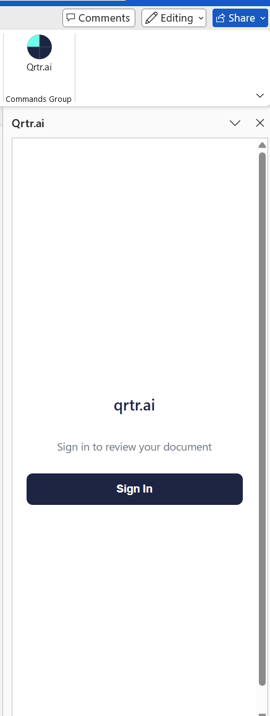
Clicking on the sign in button opens up the browser for you to sign into Qrtr.
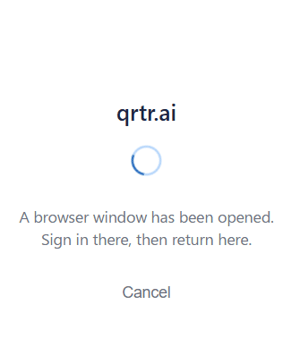
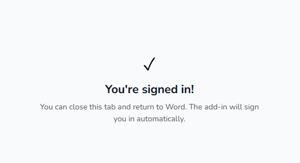
If you already signed in to Qrtr in the browser you will be instantly signed in to the Add-in. If not you will need to enter your credentials in the browser.
Linking to Qrtr
If you are working on a new document, the first action you have to take is to link to a project, or previously loaded Review documents in Qrtr. If Qrtr has been used on the document before Qrtr will recognise it and it will be linked automatically. Click on Link to Qrtr.
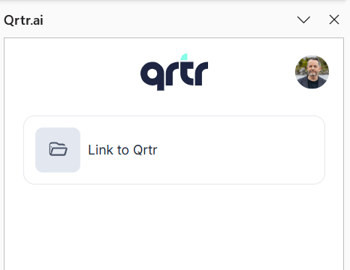
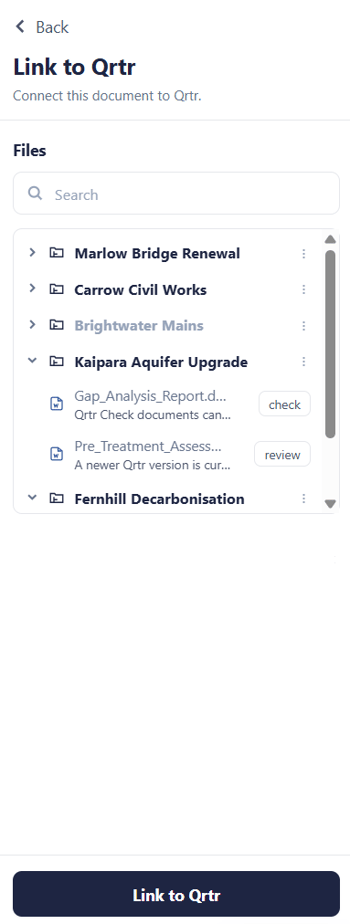
The opens up the Link to Qrtr panel. Click on a project to link it to the Project and its associated Quality Profile or drill down in to a project and connect to a previous review version. Qrtr will advise you on the document status and what will happen. Click on the Link to Qrtr button.
Running Qrtr for first time
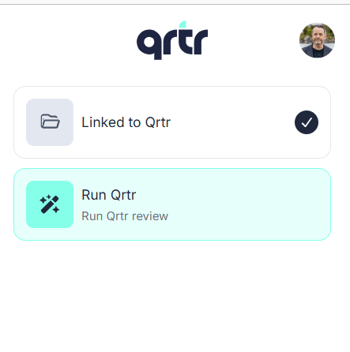
Once the document is linked a Run Qrtr button is available. Clicking on this will start the automatic review against the project quality profile.
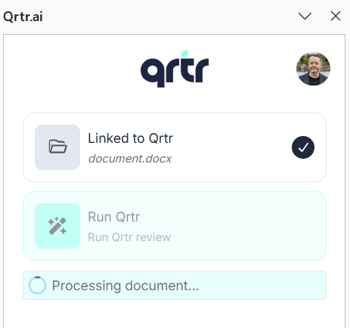
A status update is provided to inform you of progress. The length of time it takes to run Qrtr varies on document length and complexity. A typical document can take 2 or 3 minutes.
Working the Fix Queue
The Fix Queue is where most of your time goes, and it is the part of the add-in that has no real equivalent in the browser. The list is not just a report you read — it is a set of items you clear.
Select an issue in the queue and two things happen at once. Qrtr moves to the relevant place in your document, so you are looking at the actual sentence, table or heading in question rather than a description of it. At the same time the details view opens, giving you the full explanation of the finding: what was expected, what Qrtr found, and where that expectation comes from.
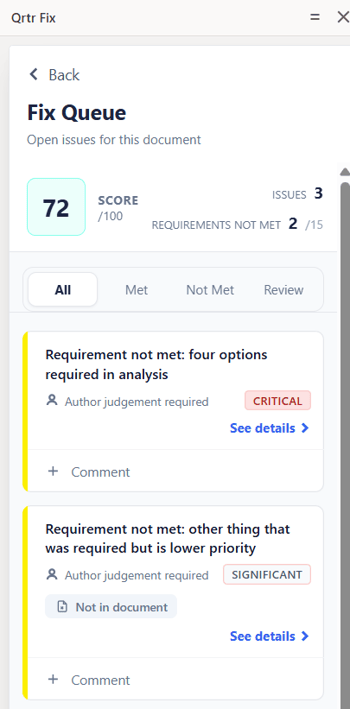
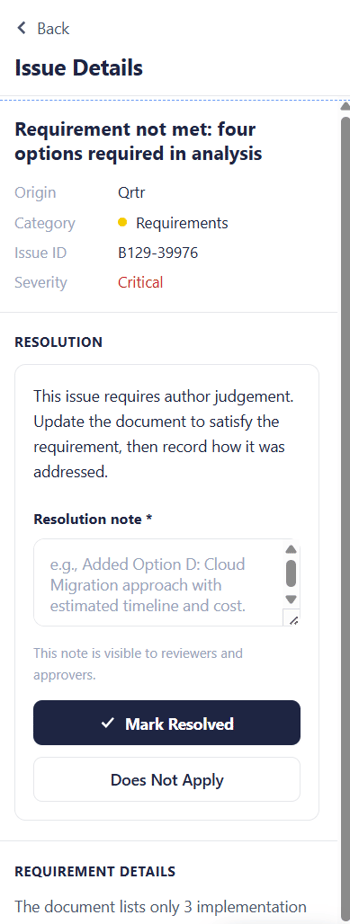
The three ways an issue leaves the queue
Resolve. Where Qrtr can make the correction itself, you can resolve the issue directly from the details view and the change is applied to the document.
Note what you did, then mark as resolved. Many findings need judgement rather than a mechanical edit. In those cases you make the change yourself in the document, add a note recording what you did, and mark the issue as resolved. The note is the part that matters later: it is what turns "this was fixed" into "this was fixed, in this way, for this reason", and it is what a reviewer or approver reads when they are deciding whether to accept your work.
Mark as does not apply. Some requirements simply are not relevant to the document in front of you. Marking an issue as does not apply clears it from the queue without pretending a change was made. Use it honestly and, where the reason is not self-evident, say why in a comment — a bare "does not apply" on a substantive requirement is the thing most likely to come back to you from a reviewer.
You can add comments to any issue at any point, whether or not you are acting on it. Comments are the conversation layer; notes and status changes are the record of what was done.
Re-running, and sending the document onward
Once you have worked through the queue you have three choices, all available from the pane.
You can run the check again. This is the normal thing to do after a round of substantive edits: it confirms your fixes landed and picks up anything your changes introduced.
You can send for review, which routes the document to a reviewer.
You can send for approval, which routes it to an approver for sign-off.
For both of the latter, you choose the person from a dropdown list. That list is not free text — it contains the reviewers and approvers your organisation's admin has designated. If the person you expect is missing, the fix is a permissions change in Admin settings, not a workaround in Word.
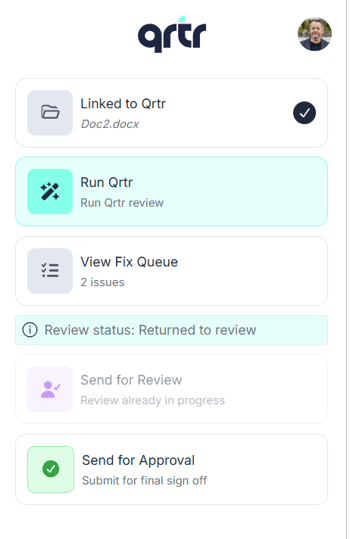
When a reviewer is working at the same time as you
Once a document is sent for review it sits in In Review status, and this is where the add-in becomes genuinely collaborative rather than just convenient.
As the reviewer works through the document and raises issues, those issues appear in your Fix Queue in real time. You do not wait for the review to be finished and handed back — you can start clearing findings while the reviewer is still reading. A notification on your home page tells you when review activity has started.
You can read the reviewer's comments in the details view of each issue and reply with comments of your own, close to live. Nothing about that immediacy makes it informal, though: every action and every comment is logged against the issue. The conversation is the audit trail, which is a good reason to write comments as though someone will read them in six months, because they might.
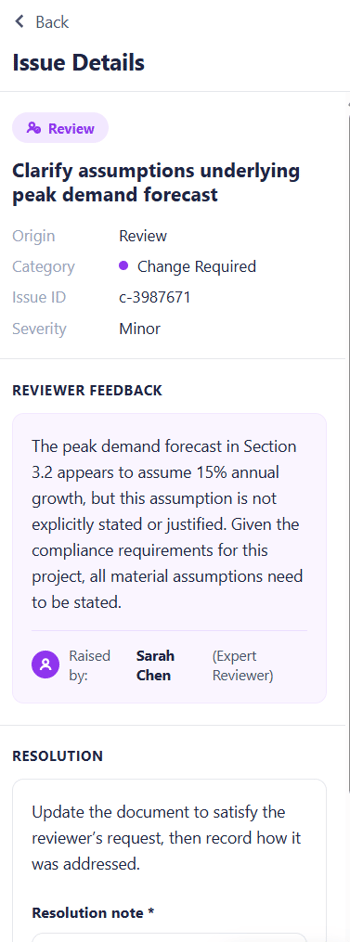
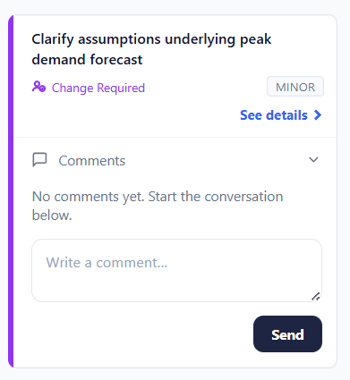
From there the rhythm is the same as before. Address each issue, mark it as resolved with a note where the fix needed judgement, and when the document is clean, send it for approval.
What happens after you send for approval
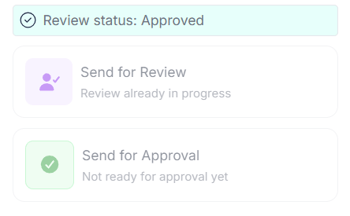
When you select and send to an Approver, or Approvers, the status changes to Pending. The Approver gets notified and can view the document and issue register in the browser. Once the document is Approved the status changes to Approved. Once an approver signs off, the result is locked — the record of what was found, what was done about it and who accepted it is fixed, and only then can the report be distributed.