
A Qrtr Check report is only useful once it reaches the people who need it. Distribution is deliberately gated: reports cannot be emailed while they are provisional, and who receives them is configured on the project rather than typed in fresh each time. This article covers both halves — setting up the list, and sending.
The rule that governs everything else
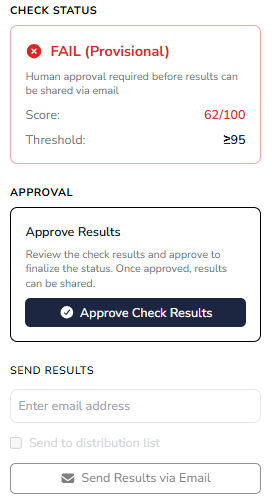
Nothing goes out before approval. On a provisional report the Send Results via Email button is present but disabled, and the status card states that human approval is required before results can be shared. Approve the report and the send controls become active.
This is intentional, and it is the main thing to explain to anyone who asks why they cannot send a report they are looking at. The answer is almost always that it has not been approved yet.
Setting up the distribution list
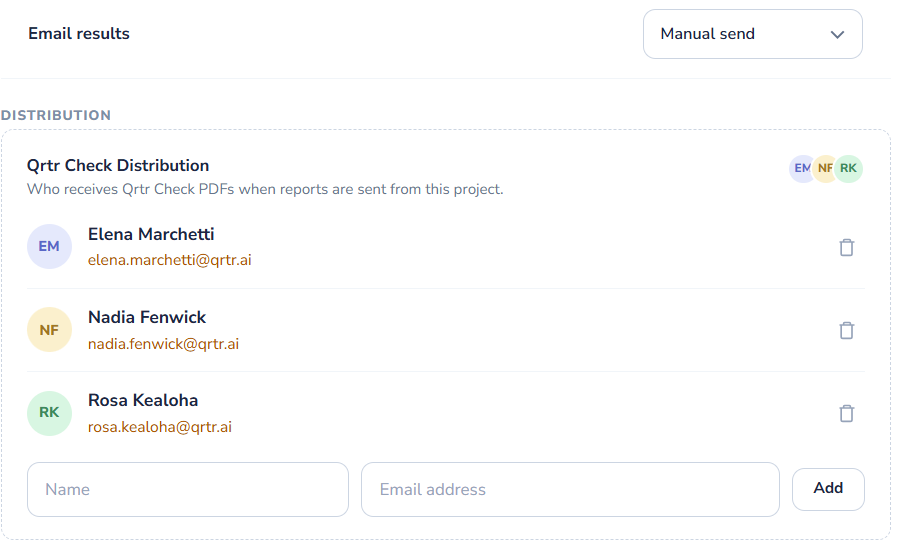
The recipient list lives on the project's quality profile. Open the project, choose Edit quality profile and scroll to Distribution. The block is headed Qrtr Check Distribution and describes itself as controlling who receives Qrtr Check PDFs when reports are sent from this project.
Each existing recipient appears with their initials, name, email address and a delete icon. To add someone, enter a Name and an Email address and choose Add. Recipients do not need Qrtr accounts — this is a list of email addresses, which is what makes it suitable for client contacts.
Because the list is part of the quality profile, changes to it are versioned like any other profile change and appear in Change history with who made them and when.
Manual send or automatic
Under Check settings on the same page, Email results offers Auto send or Manual send.
Manual send means someone approves the report and then decides to send it. Auto send means the report goes to the distribution list without a separate send action. Auto send saves a step on high-volume, routine work; manual send is the safer default for anything client-facing, because it keeps a human decision between the result and the recipient. Approval is still required either way.
The related setting Human approval — Required or Not required — sits directly above it, and the two should be considered together. Combining auto send with approval not required means results leave the building without anyone looking at them, which is rarely what a firm intends.
Sending a report
On an approved report, the Send results block gives you two options, which can be used together.
Enter an address in Enter email address to send to one person who is not on the list — the ad-hoc case. Tick Send to distribution list, which shows the number of recipients configured, to send to everyone set up on the project. Then choose Send Results via Email. This sends a PDF version of the report.
Exporting instead of emailing
The report also has an Export PDF control at the top of the results panel, for when you need the file to attach elsewhere or file in a document management system rather than send from Qrtr. Bear in mind that an exported PDF leaves the audit trail behind: Qrtr records what was sent from Qrtr, not what someone did with a downloaded copy.