
Qrtr uses a small number of statuses in a lot of different places, and the same word can mean slightly different things depending on whether it is attached to a document, an issue, a project or a template. This article is the reference to check when a badge does not make sense. It is organised by what the status is attached to.
Document statuses in the review workflow
These four appear in the Status column of the Reviews list and describe where a document sits in the human workflow.
In Fix — the issues are with the author to address in the Word Add-in: the available actions are Submit for Review and Submit for Approval.
In Review — the document is with a reviewer. Issues the reviewer raises appear in the author's Fix Queue as they are created, in the browser and in the Word add-in, so work can begin before the review is finished.
Pending — the document has been submitted for approval and is waiting on an approver. This is the status to watch, because it is where work most often sits still. The approver's two options are Approve Document and Send Back to Review.
Approved — signed off. The workflow action area shows Approved as a confirmation rather than a button, and the result is locked.

Check outcomes
A Qrtr Check produces a score and a verdict rather than a workflow status.
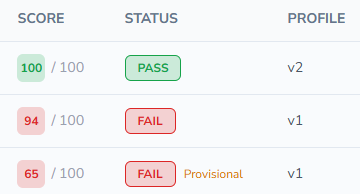
Pass and Fail — whether the document score met the pass threshold set in the project's quality profile. Both are shown with the score out of 100 and the threshold that applied, expressed as a minimum, so a report reads for example as 3/100 against a threshold of ≥95.
Provisional — the qualifier added to the verdict before approval, shown as Pass (Provisional) or Fail (Provisional). While a report is provisional, issues can be reopened, marked as not applicable and commented on, and the report cannot be emailed. Once approved the qualifier disappears and the result is fixed.
The check list also uses Provisional as a quick filter, alongside Passed and Failed, which is the fastest way to find work waiting on approval.
Issue statuses and attributes
Every finding, whether raised by Qrtr or by a person, carries several independent labels. Reading them as a set rather than individually is the trick.
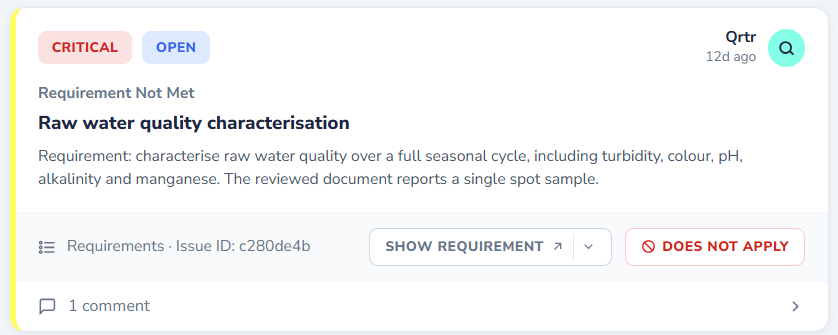
Open and Closed — the issue's working status, used by the Filter by status panel. Closed covers everything no longer needing action, including requirements Qrtr found were satisfied.
Requirement Met and Requirement Not Met — used on machine-generated findings to say whether the document satisfied the requirement.
Does not apply — the action taken when a finding is not relevant to this document. It closes the issue without implying a change was made, which is why a dismissal on anything substantive deserves an explanatory comment.
Critical, Significant and Minor — severity. When a person raises an issue the panel notes that severity affects the document quality score, so it is a substantive choice rather than a label.
Change Required, Suggestion and Query — the type, available when a person raises an issue. It tells the author whether they must act, may act, or need to answer a question.
Qrtr and Review — the source badge. Qrtr means the machine generated it from the project's requirements; Review means a person raised it, and their initials appear beside it.
Requirements and Review — the category, used in the filter panel. It mirrors the source distinction: requirement-derived findings versus human observations.
Document-wide — the scope, applied when an issue was raised without highlighting a passage. Otherwise an issue is anchored, and shows Anchored to with the relevant text.
Missing — shown in place of an anchor when Qrtr could not locate the requirement's subject matter in the document. It usually means the content is genuinely absent, which is itself the finding.
Issue ID — the short reference on each issue, useful when discussing a specific finding outside the tool.
Project statuses
Active — a project in normal use.
Archived — a project taken out of circulation. Archived projects remain visible under the Archived quick filter, keep their documents and history, and can be returned to use with Unarchive from the row menu. Archiving is the reversible option; Delete is not.
The projects list also offers a My Projects filter, which is scope rather than status.
Quality profile versions
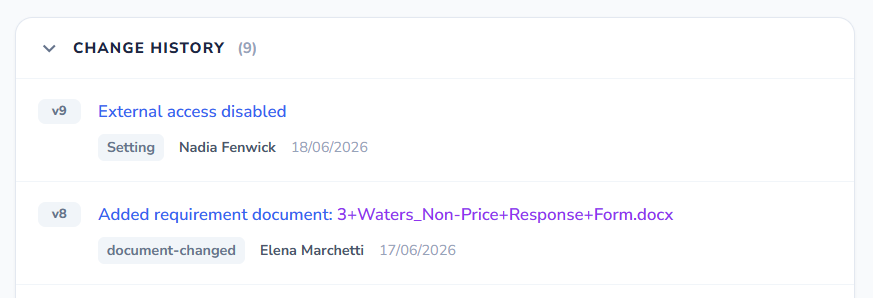
A project's quality profile is versioned, shown as v1, v2 and so on, with a note of how many changes have been made since the project started. Every output records the profile version it ran against, which is why two checks on the same document can legitimately produce different scores.
Change history on the profile lists each version with what changed, a tag describing the kind of change, who made it and when. Any comparison of results over time should start here.
Quality profile template statuses
Draft — editable. Draft templates can be changed, cloned or deleted.
Published — read-only, indicated by a padlock beside the name. Publishing happens by locking a template, and published templates cannot be deleted; the available actions reduce to Clone and Unlock.
Private, Shared and Public — the visibility setting. Private keeps a template within your organisation, Shared exposes it to organisations you nominate, and Public makes it available to every organisation on the platform.
People
Admin and Member — the account role, set when a user is invited and editable afterwards.
Active — the account status shown in the user list.
Reviewer and Approver — permissions, set independently of role in the Permissions table. These two toggles are what populate the reviewer and approver dropdowns everywhere else in the product, which makes them the most consequential switches in Admin.
Output types and log types
Documents in a project are listed with a type of Check or Review, distinguishing a scored quality check from a human review workflow.
The Logs section groups entries into views: Quality Log for everything, plus Issue Registers, Template Updates, Check Approved and Issue Transition. Issue transition entries record the source of a change as either Word add-in or Web portal, which is how you tell where a fix was actually made.