
Your user settings control your own account and how Qrtr contacts you — as distinct from the Admin area, which controls organisation-wide configuration. Most people visit this page once to get their notifications right and then rarely return, which is a shame, because the notification controls are the difference between Qrtr being useful and Qrtr being noise.
Getting there
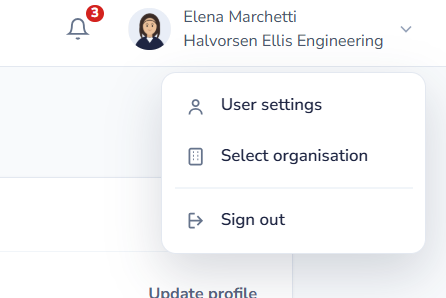
Select your name and avatar at the top right of any page. The menu offers three options: User Settings, Select Organisation and Sign Out.
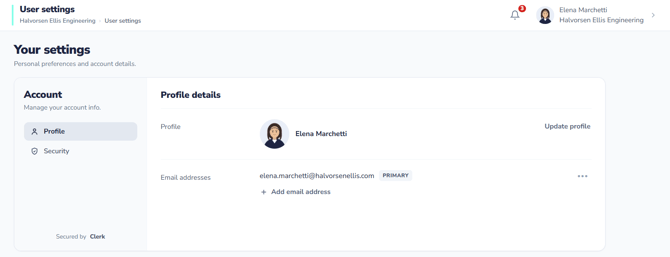
Choose User Settings. The page is headed Your Settings, subtitled "Personal preferences and account details", and is made up of a series of collapsible sections.
Account
The first card is Account, subtitled "Manage your account info.", with two tabs down the side: Profile and Security.
Profile
Profile details shows your avatar and name with an Update profile action for changing either.
Email addresses lists your addresses, with the main one tagged Primary. + Add email address lets you add another, and a … menu beside each address gives you further options.
Adding or changing your profile picture
Select Update profile in the Profile details row. The dialog that opens handles your picture and your name together.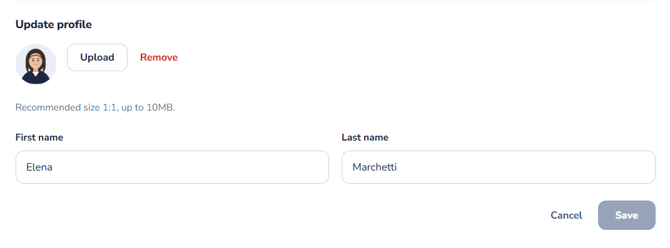
Beside the current picture are two actions. Upload opens a file picker; Remove clears the existing picture and leaves you with the default. Qrtr asks for a square image — the guidance under the buttons is a 1:1 ratio, up to 10MB. Anything else will be cropped to a square, so a photograph where you are off to one side will not frame the way you expect.
Below that are First name and Last name, which you can edit at the same time. This is the place your display name is set, so if you are appearing in the app under a shortened or misspelled name, correct it here rather than asking an administrator.
The Save button stays greyed out until you actually change something, so if it looks unavailable you have not yet made an edit. Cancel discards everything, including a picture you have just uploaded.
Uploading a picture is optional and takes ten seconds, and it is worth doing in an organisation of any size — it makes you identifiable at a glance wherever Qrtr shows who did what.
The Security tab holds two things.
Password shows a masked password with an Update password action.
Active devices lists every device currently signed in to your account. Each entry shows the operating system, the browser and version, an approximate location, and when it was last used. Your current session is tagged This device, and other sessions have a … menu.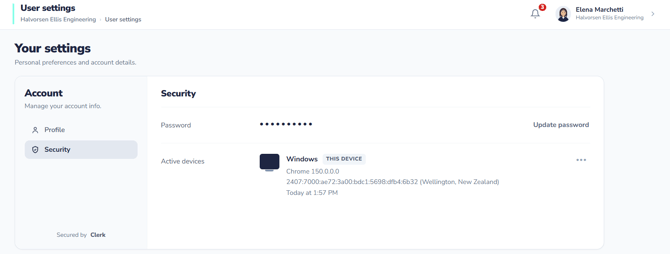
It's worth glancing at this occasionally. If you see a session you don't recognise, change your password and end that session. If you've signed in on a shared or borrowed machine and forgotten to sign out, this is where you deal with it.
Notifications
This is the section that matters, and the only one with settings you can change today.
Two master switches sit at the top:
In-app Notifications — receive notifications within Qrtr. This drives the bell icon in the top bar.
Email Notifications — receive notifications via email. This drives what lands in your inbox.
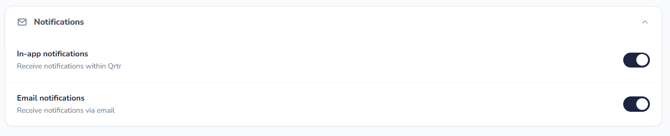
There is no Save button. Changes apply as you make them.
Related to these settings, the bell icon in the top bar shows a count of unread notifications. Selecting it opens a Notifications panel with Mark all as read and Clear all.
Each entry has a title such as Review Requested or Approval Requested, a line naming who requested what on which document (and a link to that document), and a relative timestamp. Unread entries carry a dot and a highlighted background.
Switching organisation
If you belong to more than one organisation, choose Select Organisation from the profile menu. A full-screen Select Your Organisation page appears with a note that you have access to multiple organisations and should select one to continue.
Each organisation is listed as a card showing its name and your role within it, such as Admin. Choose one and select Select Organisation to switch. The button stays inactive until you've made a selection, and a line at the foot confirms which organisation you're currently in, with a link to return home without changing anything.
Your role can differ between organisations, so you may be an admin in one and a standard member in another. Everything else in Qrtr — projects, checks, reviews, logs, insights and templates — is scoped to the organisation you're currently in, so if work seems to have gone missing, check which organisation you're in before anything else.
Signing out
Sign Out in the profile menu ends your session. Remember that signing out of one device doesn't end your other sessions — use Active devices in the Account card for that.