
Quality Logs are Qrtr's audit trail. Every time a quality profile is changed, a check is approved, an issue is resolved or a template is updated, Qrtr records it — who did it, when, and where the action came from. If you ever need to demonstrate that your quality process was actually followed, or work out why a result changed, the logs are where you go.
This guide explains how to navigate the log views, what each one records, and how to read an individual log entry.
Opening the logs
Select Logs in the left navigation. The page opens on All Quality Logs, which is the complete combined feed, newest first. In the top right you'll see a count such as "Showing 100 of 178 Log Entries".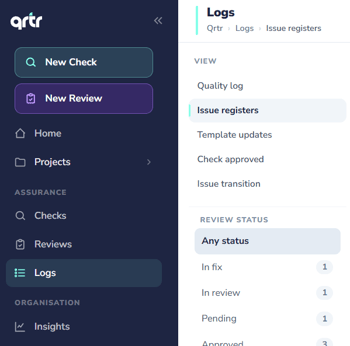
The panel down the left gives you three ways to narrow things down: a View list of the five log types, a Time Range dropdown, and a By Project list.
The four column headings

Every log view uses the same table:
- Log Type — what kind of event was recorded.
- Document — the document involved, or N/A for events that aren't tied to a single document, such as a profile change.
- Date — when it happened. Recent events show as relative times like "23h ago" or "7d ago", and older ones as dates.
- Status — the outcome where one applies.
All four headings can be used to sort the table.
A lot of rows show N/A in the Document and Status columns, and that's expected rather than a fault. Project-level events like a profile change genuinely aren't attached to one document.
The five log views
Quality Log
The default combined feed. Everything from all the other views appears here in one chronological stream, which makes it the right place to start when you want to see everything that happened to a project in date order.
Issue Registers
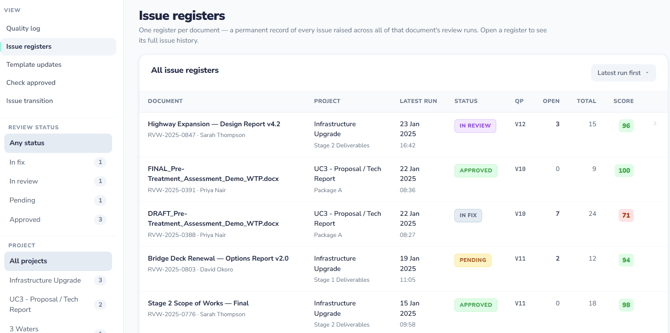
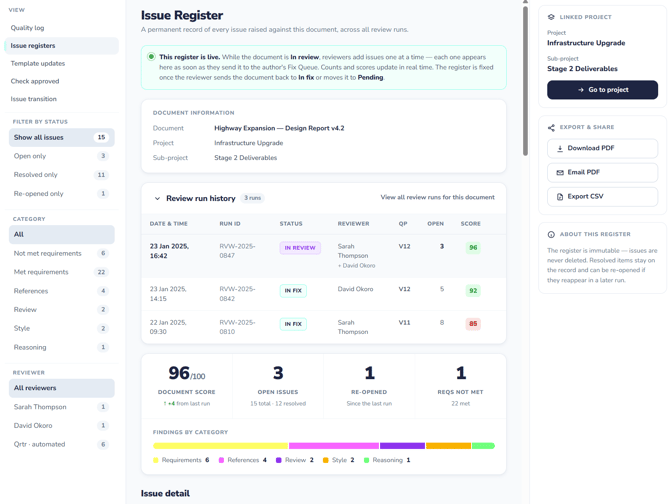
An issue register is the live status of a document as it moves through the review process, showing whether it currently sits at In Fix, In Review, Pending or Approved. Of all the logs, this is the one intended to carry the most weight day to day, because it answers the question everyone actually asks: where is this document right now?
Template Updates
Records changes to your organisation's Quality Profile Templates. Because a template can be applied to many projects, a change here has a wide reach, which makes this the log to check when several projects start behaving differently at once.
Check Approved
Records every Qrtr Check that has been formally approved. Since check results stay Provisional and cannot be emailed until approved, this log is effectively the register of results that have been released. For assurance purposes it's usually the most important log to be able to produce on demand.
Issue Transition
Records individual issues changing state — for example an issue being resolved. Crucially, it captures whether the change was made in the Word add-in or in the browser.
Filtering
By time range
The Time Range dropdown offers All Time (the default), Last 7 days, Last 30 days and Last 90 days. Narrowing to 7 or 30 days is the fastest way to answer "what changed recently?" on a busy project.
By project
The By Project list shows every project that has log activity, each with a count badge, ordered with the busiest first. Selecting a project filters the table to that project and changes the heading to include the project name — for example JBSG Logs.
Paging through results
The logs load 100 entries per page. At the foot of the table you'll find the count — "Showing 100 of 178 log entries" — alongside Previous, a page indicator such as Page 1 of 2, and Next.
If you're looking for something specific, filtering by project and narrowing the time range is almost always quicker than paging through.
Reading an individual log entry
Selecting any row opens that entry's own detail page. Every detail page has a Back to Logs link at the top left and a Log Entry panel showing the Type and Document. What appears in the main area depends on the log type — and this is where the genuinely useful information lives.
A Project Quality Profile Updated entry
Shows a Project Information panel with the Project name and when it was Updated, then a Changes panel listing each individual change as a tagged line. For example a document-changed tag followed by "Added requirement document: [filename]".
This is how you find out exactly what someone altered, not merely that they altered something.
A Qrtr Check Approved entry
It shows two panels side by side:
Document Information — the Document name and the Approved timestamp.
Check Information — the Mode (for example Manual) and Approved by (the person who signed it off).
Beneath those sit two large figures, Document Score out of 100 and Pass Threshold, followed by a Result panel showing Pass or Fail.
Together that captures the whole picture in one place: which document, scored what, against what threshold, approved by whom, and when.
An Issue Transition entry
Shows two panels:
Transition — the Issue reference, the Change that occurred (for example Resolved), and When it happened.
Actor — Changed by, Document, and Source.
A Quality Profile Template Updated entry
Shows a Template Information panel with the Profile Name, Profile ID and Updated date, followed by an Event Details panel with a plain-language summary such as "The quality profile template [name] was updated."
Practical ways to use the logs
If a document's score changed unexpectedly between two checks, filter the logs to that project and look for Project Quality Profile Updated entries between the two check dates. The Changes panel on those entries will usually tell you exactly which requirement was added or removed.
If you need to evidence your quality process, the Check Approved view is your register of released results, and each entry carries the approver's name, the score, the threshold and the timestamp.
If several projects change behaviour at once, check Template Updates before investigating each project individually — a single template edit propagates widely.
And if you need to understand how a document was actually worked on, Issue Transition with its Source field shows you which changes came from the add-in and which from the browser.