
What a quality profile is
Every project in Qrtr has a quality profile. It is the single set of rules that decides what your documents are checked against, how strictly they're scored, who has to sign off before results can leave the system, and who receives them.
If a check result surprises you, the quality profile is almost always the explanation. This article covers every setting on the profile screen and what changing it actually does.
Opening your quality profile
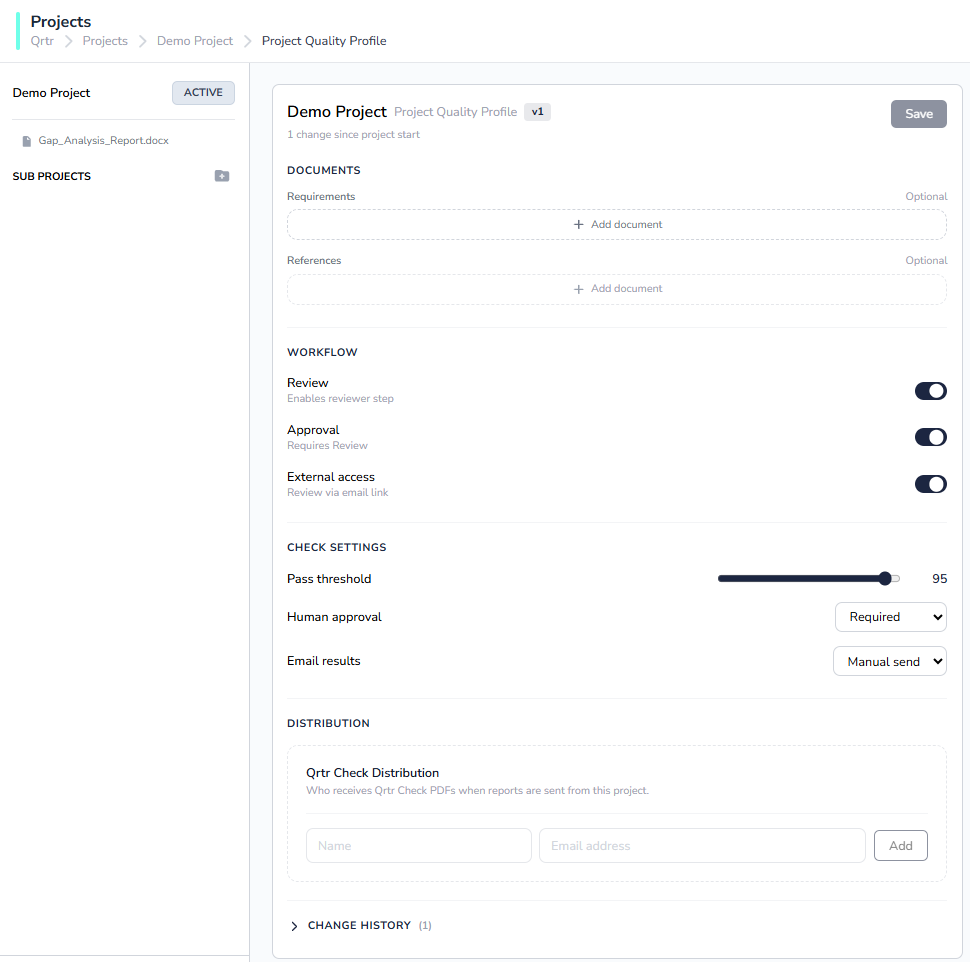
Open a project from Projects in the left navigation, then click Edit quality profile at the top right of the Outputs screen. You can also reach it from any check result — the right-hand panel has an Edit Quality Profile shortcut that takes you straight to the profile that produced that result.
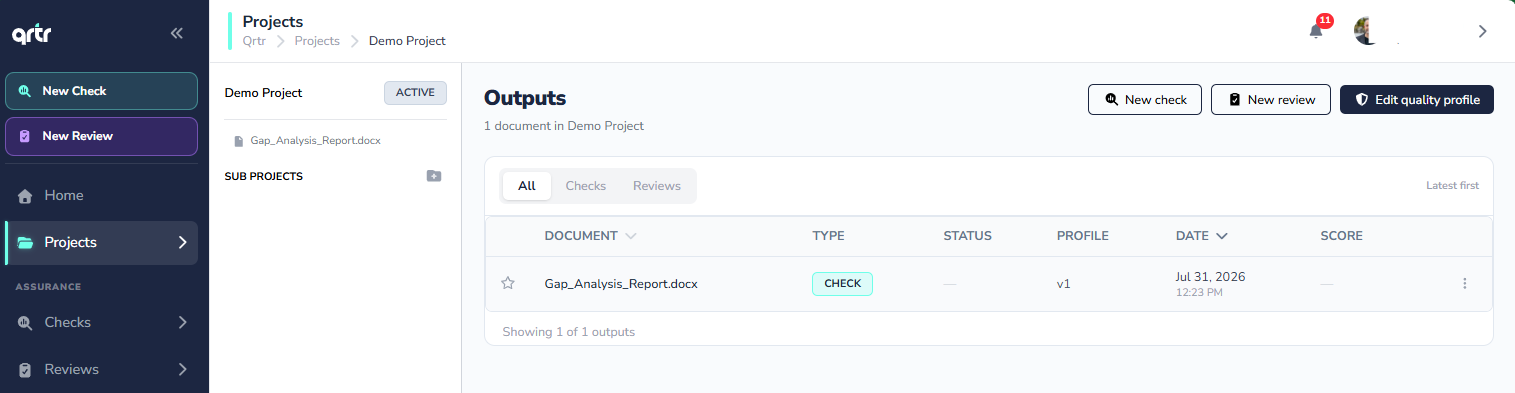
The profile screen header shows the project name, a version badge such as v7, and a line telling you how many changes have been made since the project started.
Documents: what you're being checked against
This is the most important part of the profile and the one that most affects your results.
Requirements are the documents that define what your deliverable must achieve — proposals, statements of work, engagement letters, audit protocols, terms of reference. Qrtr reads these and extracts the individual requirements it will then hunt for in any document you check. The count beside the heading tells you how many requirement documents are loaded.
References are supporting materials you rely on rather than obligations you must meet: internal or external standards, policies, guidelines. Qrtr checks that you have used these correctly wherever you cite them.
Both sections are marked optional, but this is where the "garbage in, garbage out" rule applies. A project with no requirement documents has nothing specific to measure against, and your check reports will be correspondingly thin. If your check found far fewer requirements than you expected, check that the right requirement document is loaded here first.
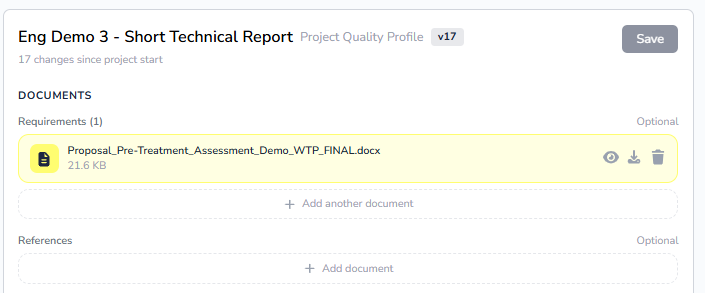
Each uploaded document has three icons: an eye to preview it and see the extracted requirements on a requirement document, a download arrow to retrieve the original, and a bin to remove it. Add another document and Add document add more to each section.
Workflow: who has to touch the work
Three toggles control the human steps around your checks.
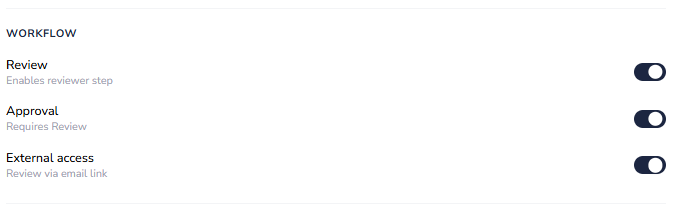
Review enables the reviewer step, which is what allows a document to be sent to a person for review rather than just scored by Qrtr.
Approval requires a sign-off stage. Its helper text notes that it depends on Review being enabled.
External access allows review via an emailed link. This is how you bring in guest reviewers who don't have Qrtr accounts — turn it off if you need all review activity to stay inside your own user base.
Check settings: how strictly you're scored
Pass threshold is the minimum score out of 100 a document needs to pass a check. The default is 95. This is deliberately demanding — it assumes you want to catch near-misses rather than only catastrophes. Lower it if your team is drowning in fails on early drafts, but understand that you are lowering the bar rather than improving the document.
Human approval decides whether a person must approve a check result before it can be shared. Set to Required, every result arrives in a provisional state and cannot be emailed until someone approves it. Set to Not required, results are final as soon as the check finishes. This is the setting that produces the "Provisional" label you'll see on check reports, so if you are wondering why results are stuck awaiting approval, this is why.
Email results chooses between Auto send, where reports go out to your distribution list automatically, and Manual send, where you decide when to send. Manual send is the safer default when reports go to clients.
A note on defaults: when you create a project, Qrtr applies sensible defaults so you can start immediately. Nothing here is permanent — every setting can be changed at any point, and changes are versioned rather than silently overwritten.
Distribution: who receives reports
Qrtr Check Distribution is the standing list of people who receive Qrtr Check PDFs when reports are sent from the project. Add a recipient by entering a name and email address and clicking Add; remove one with the bin icon beside their entry.
This list matters more than it looks. Combined with Email results set to Auto send, it means reports leave your organisation without a further click. Review it before you enable auto send on any client-facing project.
Change history and versioning
Every save creates a new version. The Change history panel at the bottom of the profile expands to show the full list, newest first, with a version badge, a plain-English description of what changed, a category tag such as Setting or document-changed, who made the change and when.
Entries read like an audit trail — for example, a v1 entry might record that human review changed from not required to required, that email results changed from auto send to manual send, that the reviewer step was enabled, and which requirement document was added, all as part of the same save.
This matters for two reasons. First, check results record the profile version they ran against — a report header will show something like QP v5 — so you can always establish exactly which rules produced a given score. Second, if a document's score shifts between checks and nothing about the document changed, the change history will tell you what changed underneath it.
Quality profile templates
If your organisation checks the same kinds of deliverable repeatedly, you don't need to configure each project by hand. Templates live under Admin → Quality Profile Templates and are described as reusable templates for project scoring and workflow settings.
The template list shows each template's name, its pass threshold, which workflow stages it enables, and when it was created. A padlock beside a name indicates a locked template.
A template contains the same sections as a project profile — documents, workflow, check settings and distribution — plus a Sharing section controlling visibility and which organisations it's shared with. Template actions include Clone to spin off a variant, Lock to prevent further edits, Delete, and Save. New templates start in a Draft state.
To apply one, choose it from the Quality Profile Template dropdown on step 1 of the Create new project wizard. The template's settings are copied into the new project's profile, and you can then adjust them for that project without affecting the template.

Practical guidance
Get the requirement documents right before you tune anything else — they determine what Qrtr looks for, and no threshold adjustment compensates for the wrong source document. Leave the pass threshold high while you're learning what your reports look like; a low threshold hides problems rather than solving them. Keep Human approval set to Required and Email results on Manual send for anything client-facing, so nothing leaves the system unreviewed. And if you have more than two or three projects of the same type, build a template — it's less work than repeating the setup and it makes your standards consistent across the team.